Two Built-in iPhone Features That Stop Time
From Tracy Sweeney’s session “Unleash Your iPhone’s Power for Stunning Portraits!” at last year’s iPhone Photography Conference, here’s a behind-the-scenes look at how I use Burst Mode and Live Photos to capture fast-moving kids and real emotion—without missing the moment.
Capturing Fast Action with Burst Mode
This can be really effective if you’re photographing something like a child’s basketball game. You’re waiting for that perfect anticipatory shot, but you don’t know exactly when the moment is going to happen. That’s where Burst mode comes in. It’s ideal for fast-moving subjects because it gives you several options to choose from. Sometimes it’s a lot of junk, honestly—but the great thing is you can go in afterward and just select the one best image.
To use burst mode, open the Camera app and make sure you’re in Photo mode—not Video or Portrait. Then you simply swipe the shutter button to the left and hold it there. That starts taking a series of photos. When you lift your finger, it stops, and you’ve captured a whole succession of images in that instant.
Selecting and Managing Burst Photos
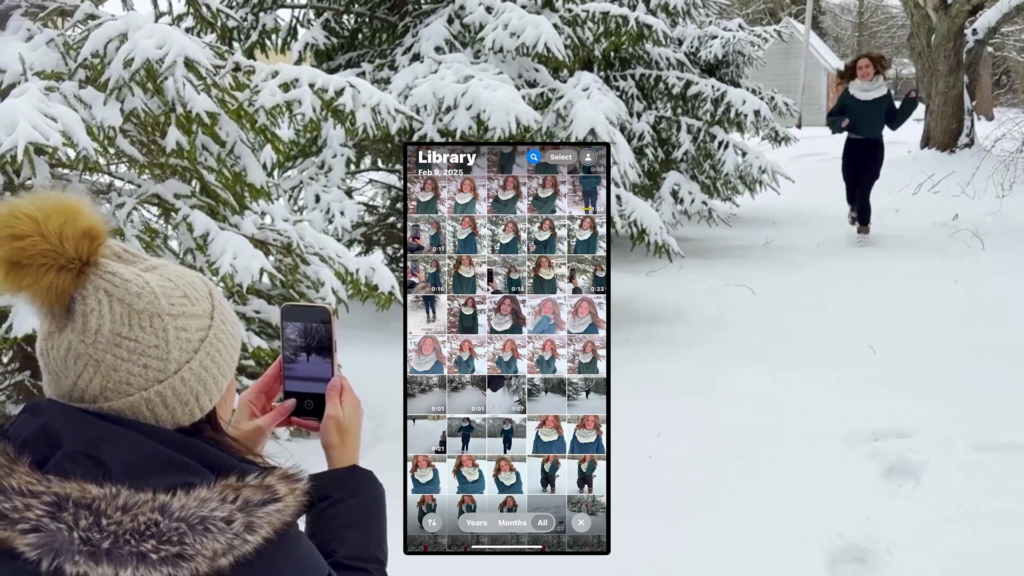
Once you’re done, head to your photo library and you’ll see the burst. In the upper left corner, you can see how many photos you captured. In this case, I took 71 images in a very short amount of time just by swiping and holding. When I lifted my finger, the burst completed. Now I can swipe through from the bottom to view all of my options and make selections of the images I like the most.
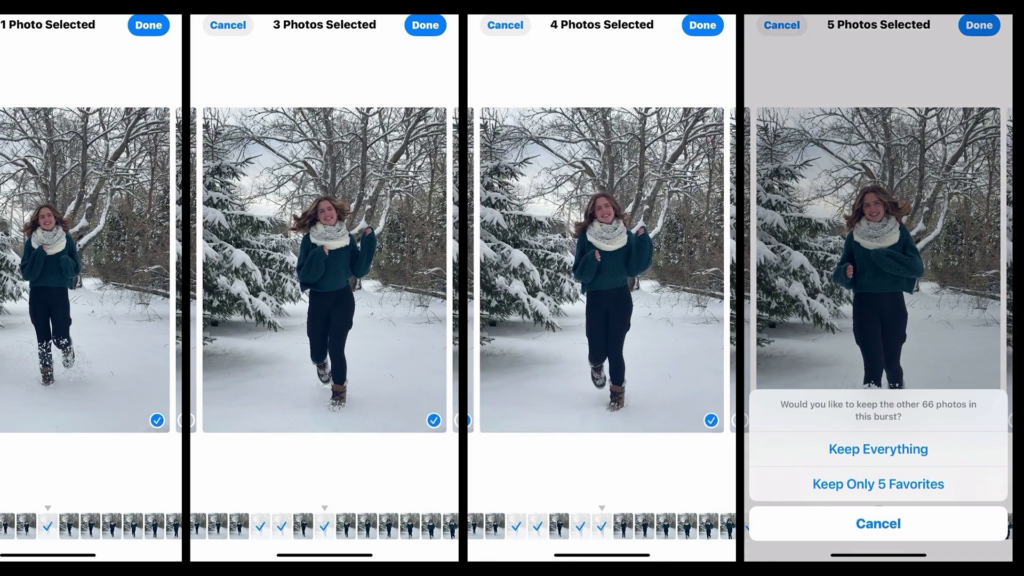
So for the photos I love, I don’t have to keep all 71 unless I want to. I’ll be prompted to either keep everything or keep only my favorites—maybe five. If you don’t want to miss a moment, and you’ve got tons of storage on your phone, go for it. But if you want to clean things up, you can just keep your top picks.
Now, another really cool feature is Live Photos.
Capturing Fast Action with Live Photos
Live Photos capture a moment in motion. When you take one, it records about one and a half seconds of video before and after you press the shutter button. So it creates this short animation that even includes sound. For someone like me who posts on social a lot for my business, this is really cool. My goal might be to create a still image, but then I can also use that same moment as an Instagram Reel or in a post where the image comes to life.
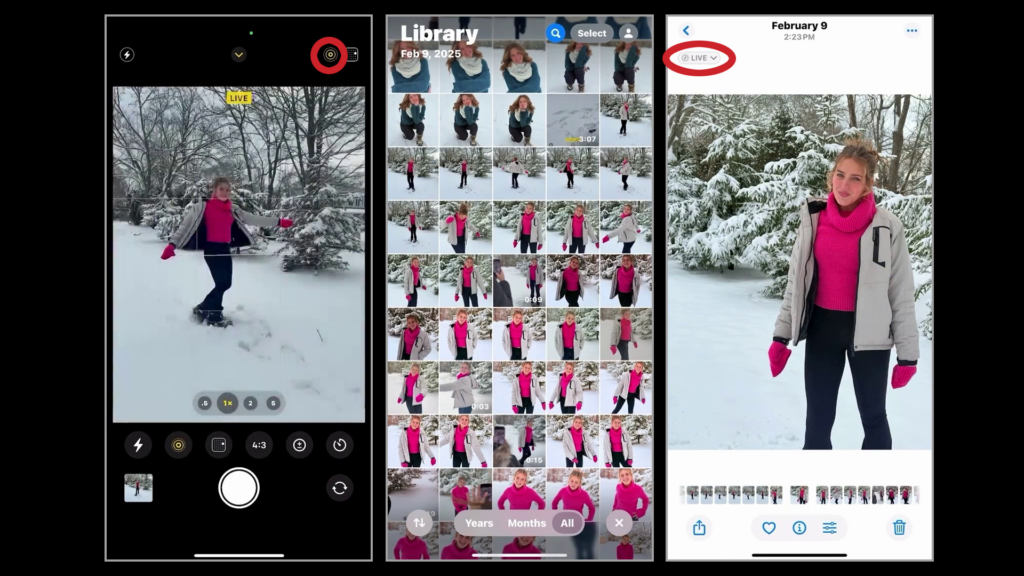
To take a Live Photo, open your camera and make sure you’re in Photo mode. Then check that Live Photo is turned on—you’ll see the icon at the top with the three circles that ascend in size. It’s on by default, but if you’ve tapped it off, just tap it again to activate it. Some people keep it off because the file size is larger, which I totally get.
To capture one, just tap the shutter button or use the camera control on your iPhone 16 or newer. To view it, go to your camera roll. You’ll see “Live” in the top left corner. Hold down on the image and you’ll see the animation play. You get the entire clip from before the shutter to after—it all gets pieced together into this really neat little moment.
This is especially powerful when photographing people. You’re not just capturing the moment—you’re capturing the emotion behind it. That sentiment is beautiful, and it gives us more creative options.
Editing Live Photos
The image itself has the photographic style attached to it. If I don’t love the look, I can edit and apply a different style that feels better. Everything is non-destructive, so I can edit to my heart’s content. Once I click Done, it’s still a Live Photo. If I hold it down, it still animates, which is really cool.
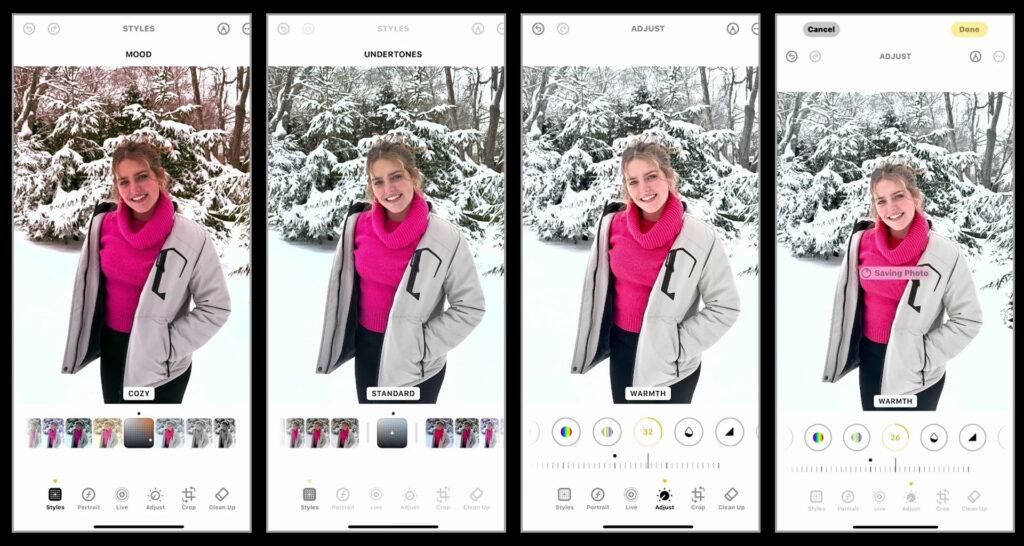
If I want to edit the animation itself, I need to save it as a video. Click the ellipses in the top right and choose Save as Video. Now it appears in my camera roll as a video and I can edit that clip. I won’t have as many options as I do with photographic styles, but I can still use filters like vivid, vivid warm, vivid cool, dramatic—these might already feel familiar since they’ve been on iPhones for a long time. And of course, I can still make individual adjustments throughout.
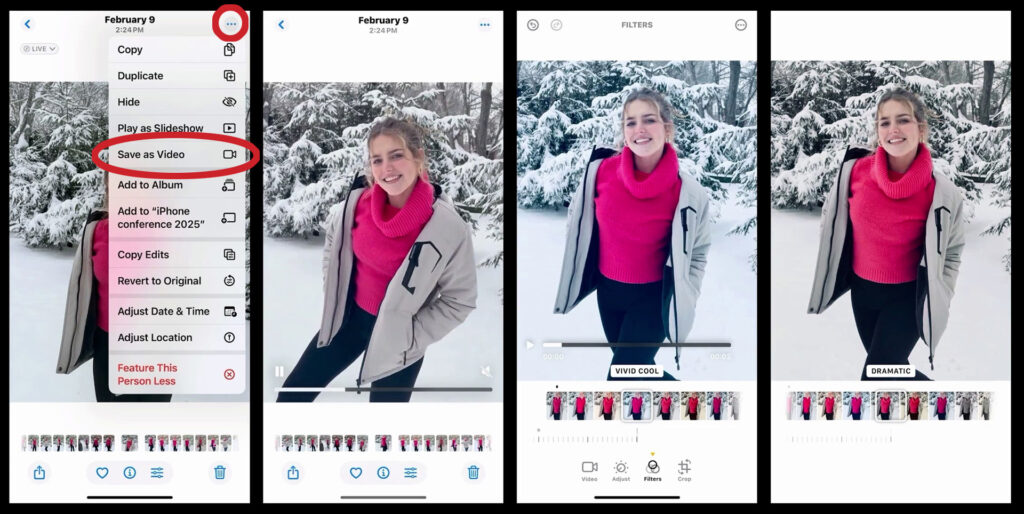
So between Burst mode and Live Photos, you’ve got some really powerful tools right in your pocket. Whether you’re photographing kids on the move, a game, or just those everyday moments you don’t want to miss, this gives you options. You’re not stuck with one frame—you can choose the best one, or even bring it to life. We’re not just capturing pictures, we’re capturing feeling and story. It helps you hold onto moments that go by way too fast.
Make Every Shot Count
The iPhone Photography Conference is back March 9–11, 2026, featuring three days of hands-on tips, creative approaches, and editing techniques from top industry pros. You’ll walk away ready to capture images you’re truly proud of—anytime, anywhere.